What Is a USB Hub? Simple Guide Before You Buy One.
A USB hub is a small accessory that gives your laptop, desktop, tablet, or workstation more USB ports. It can help you connect keyboards, mice, flash drives, external drives, webcams, card readers, microphones, printers, and other accessories without constantly unplugging devices.
More ports, fewer headaches.
The right USB hub can clean up your setup. The wrong one can cause slow transfers, weak charging, or devices that keep disconnecting.
Why Trust USBHubShop
USBHubShop helps readers compare USB-C hubs, chargers, cables, docking stations, and accessories using plain-English compatibility guidance.
-
Independent by design
USBHubShop does not manufacture USB-C accessories or sell its own competing charger, cable, hub, or docking station line. -
Compatibility-led, not promotional
Guides are built around device compatibility, charging standards, port support, cable requirements, and practical buyer use cases. -
Clear and accountable
Articles are written under a consistent editorial process with visible update dates, affiliate disclosures, and clear responsibility for corrections. -
Maintained with intent
USB-C standards, charging speeds, cable ratings, device requirements, and product availability can change. Guidance is reviewed and updated as the category evolves.
Affiliate disclosure: USBHubShop may earn a commission when you buy through links on this page, at no extra cost to you. We focus on helping you choose USB-C hubs, powered hubs, chargers, cables, adapters, and accessories that match your actual setup.
Quick answer
A USB hub is an accessory that expands one USB port into several ports so you can connect more devices. A basic hub may be enough for a keyboard, mouse, flash drive, or simple accessory. A powered USB hub is better for multiple devices or external drives. A USB-C hub or docking station is better when you need HDMI, Ethernet, SD cards, laptop charging, or a cleaner desk setup.
Do not buy only by the number of ports.
The best USB hub is not always the one with the most ports. Check the port type, USB speed, power support, charging behavior, video support, cable quality, and whether the hub is meant for travel, desk use, or external drives.
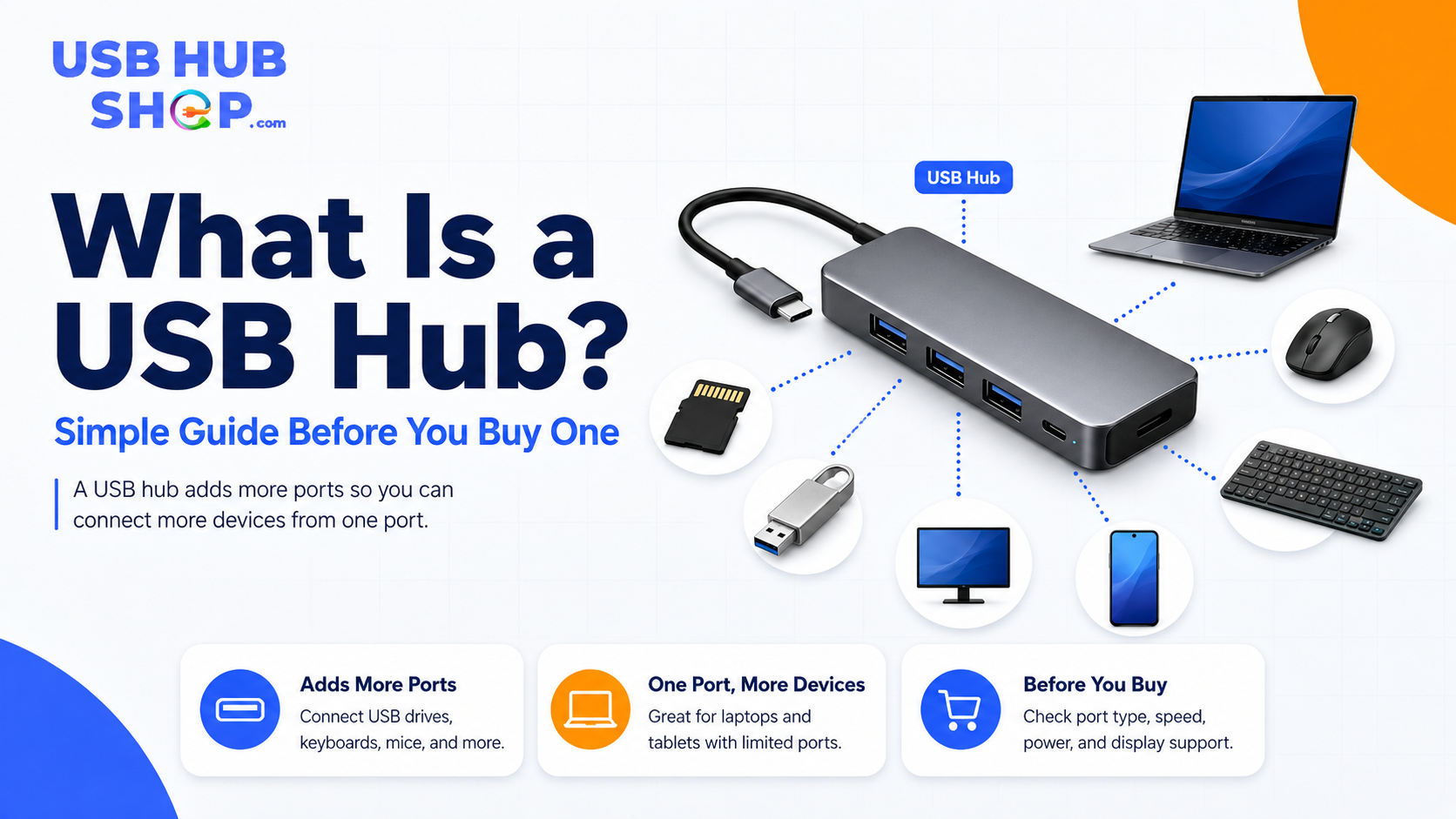
A USB hub adds more ports, but the right one depends on your devices, speed needs, charging needs, and desk setup.
What does a USB hub do?
A USB hub takes one USB connection from your computer and turns it into multiple usable ports. That lets you connect several accessories at the same time instead of constantly switching cables.
For example, if your laptop only has two USB-C ports, a USB-C hub can add USB-A ports, HDMI, SD card slots, Ethernet, and sometimes USB-C Power Delivery passthrough. If your desktop has limited front ports, a USB-A hub can make it easier to connect everyday accessories.
Simple USB hub
Best for adding extra ports for keyboards, mice, flash drives, dongles, and simple accessories.
USB-C hub or dock
Best when you need HDMI, Ethernet, SD cards, charging passthrough, external displays, or a complete laptop setup.
When do you need a USB hub?
You need a USB hub when your device does not have enough ports for the accessories you use. This is common with modern laptops, MacBooks, Chromebooks, tablets, compact desktops, gaming handhelds, and work-from-home setups.
A USB hub is especially helpful if you use several accessories every day and want a cleaner, more permanent setup.
| Use case | Best hub type | Why it helps |
|---|---|---|
| Keyboard, mouse, and flash drive | Basic USB-A or USB-C hub | Adds extra ports for simple accessories. |
| External hard drives or SSDs | Powered USB hub or high-speed USB-C hub | More stable power and better transfer support matter for storage. |
| Laptop with one monitor | USB-C hub with HDMI | Adds display output if your laptop supports video over USB-C. |
| Desk workstation | USB-C docking station | Better for monitors, charging, Ethernet, and multiple accessories. |
| Travel setup | Compact USB-C hub | Gives you useful ports without carrying a full dock. |
| Many USB devices | Powered USB hub | Helps support several devices with more stable power. |
Basic hub
Enough for keyboards, mice, receivers, and flash drives.
Powered hub
Better when several devices need stable power.
Docking station
Better for monitors, charging, Ethernet, and a permanent setup.
USB hub vs USB-C hub vs docking station
These terms overlap, but they are not always the same thing. A USB hub usually means extra USB ports. A USB-C hub may add several port types through one USB-C connector. A docking station is usually larger and designed for a full desk setup.
USB hub
Main job: add more USB ports. Good for simple accessories and everyday expansion.
USB-C hub
Main job: add useful laptop ports like HDMI, USB-A, USB-C, SD card, Ethernet, and charging passthrough.
Docking station
Main job: turn a laptop into a full desk workstation with monitors, Ethernet, charging, and many accessories.
If you are not sure which one you need, start with the USB-C Hub vs Docking Station guide.
Powered vs unpowered USB hubs
An unpowered or bus-powered USB hub pulls power from the computer. That can be fine for simple accessories. A powered USB hub uses its own power adapter, which can help when several devices need stable power.
Powered hubs are especially useful for external hard drives, multiple USB devices, audio gear, cameras, and setups where devices keep disconnecting.
Power matters more than people think
If your hub keeps disconnecting devices, fails to recognize an external drive, or struggles with multiple accessories, a powered hub may be a better choice than another basic hub.
For a deeper breakdown, read Powered USB Hubs Explained.
What ports should a USB hub have?
The right ports depend on what you connect. Do not buy a hub just because it has a long spec list. Buy the ports you will actually use.
| Port or feature | Best for | What to check |
|---|---|---|
| USB-A | Older accessories, mice, keyboards, flash drives, printers | Number of ports and USB speed. |
| USB-C | Modern devices, phones, tablets, SSDs, newer accessories | Whether it supports data, charging, or both. |
| HDMI | External monitors, TVs, projectors | Resolution, refresh rate, and whether your device supports video output. |
| Ethernet | More stable wired internet | Gigabit support if speed matters. |
| SD / microSD | Photos, cameras, drones, creators | Card type and transfer speed. |
| USB-C Power Delivery | Laptop charging through the hub | Wattage support and charger compatibility. |
USB speed: what buyers should know
USB speed names can be confusing. A hub may say USB 2.0, USB 3.0, USB 3.2, USB4, or Thunderbolt. The practical question is simple: how fast do your devices need to transfer data?
For keyboards, mice, printers, and basic accessories, speed is usually not a big concern. For external SSDs, video files, SD cards, and creator workflows, speed matters much more.
USB 2.0
Fine for simple accessories, but not ideal for fast storage or large file transfers.
USB 3.x
Better for flash drives, external drives, card readers, and everyday file transfers.
USB4 / Thunderbolt
Better for premium docks, fast storage, high-end displays, and demanding workflows.
If your hub feels slow, read USB-C Hub Slow Transfer Speed.
What to check before buying a USB hub
Device compatibility
Check whether your laptop, tablet, desktop, or phone supports the hub features you want.
Port types
Make sure the hub has the ports you actually use, not just the most ports possible.
Power support
Choose a powered hub for multiple devices or external drives. Check USB-C PD if laptop charging matters.
Data speed
USB 3.x or better is usually smarter for file transfers and external storage.
Video support
If you need HDMI, check resolution, refresh rate, and whether your USB-C port supports video output.
Desk or travel use
Small hubs are better for travel. Larger docks and powered hubs are better for desks.
Common USB hub mistakes
Most USB hub problems come from buying for the wrong need. A cheap hub may look fine until you connect an external drive, monitor, webcam, and charger at the same time.
Smart buying move
List the devices you need to connect first, then choose a hub that supports those devices.
Risky buying move
Buying the cheapest hub with the most ports without checking speed, power, video, or compatibility.
Also check these troubleshooting guides if your hub is already giving you problems: USB-C Hub Keeps Disconnecting, USB-C Hub Not Charging Laptop, and USB-C Hub Not Recognizing External Drive.
A USB hub is simple — until speed, power, and compatibility matter.
For basic accessories, almost any decent hub can help. For external drives, monitors, laptop charging, or a permanent desk setup, choose more carefully. The right hub should match your devices, not just your port count.
Best type of USB hub for each setup
| Your setup | Best option | Start here |
|---|---|---|
| Basic laptop accessories | Compact USB-C hub | Best USB-C Hubs |
| External drives and SSDs | Powered hub or high-speed USB-C hub | Best USB-C Hubs for External Drives & SSDs |
| Monitor setup | USB-C hub with HDMI or docking station | Best USB-C Hubs With HDMI |
| Desk workstation | USB-C docking station | Best USB-C Docking Stations |
| Many USB-A accessories | Powered USB hub | Best Powered USB Hubs |
| Travel | Slim USB-C hub | Best Travel USB-C Hubs |
Simple buying rule
Buy a basic USB hub for simple accessories, a powered USB hub for multiple power-hungry devices, a USB-C hub for laptop port expansion, and a docking station for a full desk setup.
As an Amazon Associate, USBHubShop may earn from qualifying purchases.People also ask
What is a USB hub?
A USB hub is an accessory that expands one USB port into multiple ports so you can connect more devices to a laptop, desktop, tablet, or workstation.
What is a USB hub used for?
A USB hub is used to connect accessories like keyboards, mice, flash drives, external hard drives, webcams, printers, card readers, microphones, and other USB devices.
Do I need a powered USB hub?
You may need a powered USB hub if you connect external drives, several accessories, cameras, audio gear, or devices that keep disconnecting from a regular hub.
Is a USB-C hub the same as a docking station?
No. A USB-C hub is usually smaller and adds a few ports. A docking station is usually designed for a full desk setup with monitors, Ethernet, charging, and more accessories.
Can a USB hub charge devices?
Some USB hubs can charge devices, but not all hubs are designed for fast charging. If charging speed matters, check USB-C Power Delivery support or use a dedicated USB-C charger.
Will a USB hub slow down my devices?
A USB hub can slow devices down if the hub, cable, computer port, or connected device supports a lower speed than you need. For external drives and large files, choose a high-speed USB 3.x, USB4, or Thunderbolt-compatible solution.
Sources and product details checked
USBHubShop reviewed this guide against current USB-IF information for USB 3.2 speeds and USB Power Delivery. The main buyer takeaway is that USB hubs should be compared by port type, power support, data speed, video capability, and device compatibility — not just by the number of ports.