The History of USB: From USB-A to USB-C and Thunderbolt.
USB started as a way to simplify computer connections. Instead of every device needing a different port, USB helped bring keyboards, mice, printers, cameras, drives, chargers, hubs, and adapters into one broader connection family.
Today, USB is no longer just about adding a keyboard to a desktop computer. It now touches charging, fast data transfer, laptop docking, external monitors, portable SSDs, phones, tablets, USB-C hubs, USB4, and Thunderbolt workflows.
USB changed how devices connect.
From USB-A to USB-C, the story of USB is really the story of ports becoming smaller, faster, more powerful, and more universal.
Why Trust USBHubShop
USBHubShop helps readers compare USB-C hubs, chargers, cables, docking stations, and accessories using plain-English compatibility guidance.
-
Independent by design
USBHubShop does not manufacture USB-C accessories or sell its own competing charger, cable, hub, or docking station line. -
Compatibility-led, not promotional
Guides are built around device compatibility, charging standards, port support, cable requirements, and practical buyer use cases. -
Clear and accountable
Articles are written under a consistent editorial process with visible update dates, affiliate disclosures, and clear responsibility for corrections. -
Maintained with intent
USB-C standards, charging speeds, cable ratings, device requirements, and product availability can change. Guidance is reviewed and updated as the category evolves.
Affiliate disclosure: USBHubShop may earn a commission when you buy through links on this page, at no extra cost to you. We focus on helping you choose USB-C cables, hubs, chargers, docks, adapters, and accessories that match your actual devices.
Quick answer
USB evolved from a simple computer connection standard into the foundation for modern cables, hubs, chargers, docking stations, and high-speed device connections. USB-A made USB familiar, USB 2.0 made it widely useful, Mini USB and Micro USB made portable devices easier to connect, USB-C improved the connector, and USB4 and Thunderbolt pushed USB-C-style connections into much faster laptop and workstation setups.
Do not confuse the connector with the speed.
USB-A, Micro USB, and USB-C describe connector shapes. USB 2.0, USB 3.x, USB4, and Thunderbolt describe capability levels. A port can look modern and still be limited, so always check the actual speed, charging support, and video support before buying.
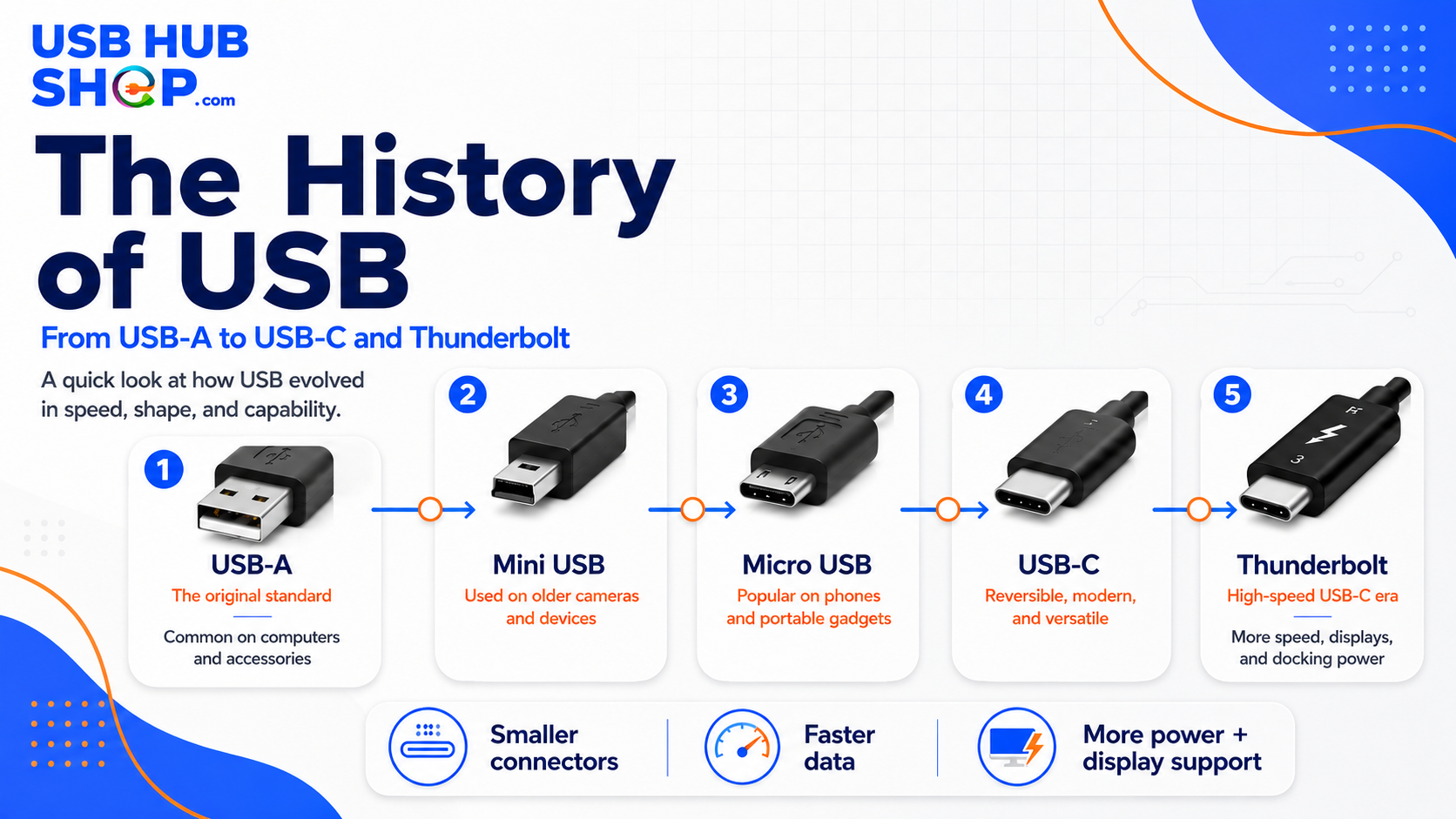
USB evolved from simple computer ports into a family of connectors, cables, hubs, chargers, docks, and high-speed standards.
Why USB was created
Before USB became common, computer accessories often used different ports and cables. Keyboards, mice, printers, scanners, cameras, storage devices, and other accessories could require separate connectors, separate setup steps, and more confusion for everyday users.
USB helped simplify that problem by creating a more universal way for devices to connect to computers. Over time, USB also became central to charging, mobile devices, external storage, monitors, hubs, docks, and modern USB-C accessories.
USB made ports simpler
The original idea was practical: make it easier to connect common devices without needing a different port for everything.
USB-C made buying more confusing
USB-C is convenient, but the same connector shape can support very different speeds, charging levels, and display features.
USB timeline: the major changes
The history of USB is easier to understand as a timeline. Each stage solved a different problem: easier computer connections, faster data, smaller devices, reversible cables, better charging, and high-performance docking.
| Era | What changed | Best next step |
|---|---|---|
| Early USB | USB-A became the familiar rectangular computer port used for accessories like keyboards, mice, printers, and flash drives. |
Useful for older accessories and basic connections.
Compare USB-A hubs |
| USB 2.0 | USB became widely useful for everyday accessories, basic storage, cameras, printers, and simple data transfer. |
Still fine for simple accessories, but limited for speed.
Read USB 2.0 hub guide |
| Mini USB | Smaller USB connectors appeared on older cameras, GPS devices, controllers, MP3 players, and portable accessories. |
Buy only when a legacy device requires it.
Read Mini USB guide |
| Micro USB | Micro USB became common on older Android phones, power banks, Bluetooth speakers, and small accessories. |
Still appears on older gear, but USB-C is better for new setups.
See Micro USB cables |
| USB 3.x | USB speeds improved for external drives, flash drives, card readers, and data-heavy accessories. |
Better for file transfers and storage than USB 2.0.
Compare USB 3.0 hubs |
| USB-C | The reversible USB-C connector became common on phones, tablets, laptops, hubs, chargers, docks, and newer accessories. |
Best default for most new cable and hub purchases.
See USB-C cable guide |
| USB4 and Thunderbolt | USB-C-style connections moved into high-speed storage, advanced docks, external displays, and workstation setups. |
Best for premium laptops, high-speed storage, and docks.
Compare Thunderbolt docks |
USB-A, Mini USB, Micro USB
Still useful for older devices, but easy to mix up in drawers, travel kits, and desk setups.
Modern defaultUSB-C
Best for many current phones, tablets, laptops, chargers, hubs, and docking accessories.
Premium performanceUSB4 and Thunderbolt
Best for high-speed storage, advanced docks, premium displays, and workstation workflows.
USB-A: the port that made USB familiar
USB-A is the classic rectangular USB connector most people recognize. It helped make USB feel universal because so many computers, chargers, printers, hubs, flash drives, and accessories used it.
USB-A is still useful today, especially for keyboards, mice, printers, receivers, flash drives, and older accessories. But it is no longer the best choice for every new setup because many newer laptops and tablets now rely heavily on USB-C.
USB 2.0: why it still matters
USB 2.0 made USB more useful for everyday devices. Even now, USB 2.0 can be enough for simple accessories like keyboards, mice, printers, USB receivers, and basic dongles.
The limit is speed. USB 2.0 is not ideal for external SSDs, large file transfers, modern docks, high-resolution webcams, or storage-heavy workflows.
| Use case | Still okay? | Best next step |
|---|---|---|
| Keyboard and mouse | Usually yes |
Low-bandwidth accessories usually do not need high-speed USB.
Compare simple hubs |
| Printers and basic accessories | Often yes |
USB 2.0 can still work for many basic peripherals.
See USB 2.0 hub guide |
| External drives and SSDs | Usually upgrade |
Storage benefits from more speed and more stable power.
See drive hub guide |
| Modern laptop docking | Upgrade |
USB-C hubs and docks are better for displays, Ethernet, power, and storage.
Compare USB-C docks |
Mini USB and Micro USB: the portable device era
As portable electronics grew, large USB connectors were not always practical. Mini USB and Micro USB helped smaller devices connect to computers and chargers.
Mini USB is mostly legacy now, but it can still appear on older cameras, GPS units, and controllers. Micro USB stayed common longer on Android phones, power banks, Bluetooth speakers, headphones, and small accessories.
USB-C: the biggest connector shift
USB-C changed the everyday USB experience because the connector is smaller, reversible, and used across many device categories. Phones, tablets, laptops, chargers, monitors, docks, hubs, and external drives can all use USB-C.
But USB-C also created new confusion. A USB-C cable can look the same on the outside but support different charging speeds, data speeds, and video features. That is why buying based only on the connector shape can cause problems.
USB-C is a connector, not a guarantee
A USB-C cable or port does not automatically mean fast data, laptop charging, HDMI output, USB4, or Thunderbolt. Always check the actual specs.
USB4 and Thunderbolt: faster USB-C-style workflows
USB4 and Thunderbolt pushed USB-C-style connections into faster and more advanced workflows. These connections matter most for users with high-speed external storage, premium docks, multiple displays, creator setups, gaming laptops, and workstation accessories.
USB4 and Thunderbolt can be powerful, but they also make compatibility more important. The laptop, cable, dock, and connected device all need to support the feature you expect.
| Need | Better direction | Best next step |
|---|---|---|
| Fast external storage | USB4 or Thunderbolt cable/dock |
Better for SSDs, backups, and large project files.
Compare USB4 cables |
| Premium desk setup | Thunderbolt dock or high-end USB-C dock |
Better for displays, storage, Ethernet, charging, and accessories.
Compare Thunderbolt docks |
| Basic accessories | Standard USB-C hub |
You may not need Thunderbolt for keyboards, mice, and basic expansion.
See USB-C hubs |
| Display-heavy workflow | Thunderbolt or advanced USB-C dock |
Check display support, refresh rate, and laptop compatibility.
Compare Thunderbolt and USB-C |
USB-C hub
Good for HDMI, USB-A, Ethernet, SD cards, travel, and daily laptop expansion.
High-speed cableUSB4 cable
Useful when your devices support USB4 and you need more performance than a basic USB-C cable.
Premium deskThunderbolt dock
Best for advanced workstations with fast storage, displays, charging, Ethernet, and accessories.
What USB history means when buying today
The history of USB helps explain why cable drawers are confusing. You may have USB-A, USB-B, Mini USB, Micro USB, USB-C, USB 2.0 cables, USB 3.x cables, USB4 cables, Thunderbolt cables, and charger-only cables in the same house.
The right choice depends on the device and the job. Older devices may still need older cables. New devices usually deserve USB-C. High-performance setups may need USB4 or Thunderbolt.
| Your situation | Best direction | Best next step |
|---|---|---|
| You are connecting old accessories | USB-A hub or correct legacy cable |
Keep older gear working without replacing everything.
Compare USB-A hubs |
| You are buying for a new laptop | USB-C hub or docking station |
Best for HDMI, Ethernet, USB-A, SD card, and charging expansion.
See USB-C hubs |
| You need a new everyday cable | USB-C cable |
Better default for many modern phones, tablets, laptops, chargers, and accessories.
Compare USB-C cables |
| You need laptop charging | USB-C PD charger and compatible cable |
Check wattage before buying.
Compare USB-C PD chargers |
| You need high-speed storage or displays | USB4 or Thunderbolt setup |
Check laptop, cable, and dock compatibility.
Compare Thunderbolt and USB-C |
USB history is useful because it explains today’s buying confusion.
The port shape does not tell the whole story. USB-A may still work. Mini USB and Micro USB may still matter for old devices. USB-C is the modern default. USB4 and Thunderbolt are for higher-performance setups. The best purchase depends on the device, speed, charging, and display support you actually need.
USB buying checklist
Before buying a USB cable, hub, charger, or dock, check these details.
1. Check the connector
USB-A, Mini USB, Micro USB, and USB-C are different physical connector shapes.
2. Check the speed
USB 2.0, USB 3.x, USB4, and Thunderbolt can support very different data speeds.
3. Check charging support
Not every USB-C cable or hub supports the same charging wattage.
4. Check video support
USB-C shape alone does not guarantee HDMI, DisplayPort, or external monitor support.
5. Check device compatibility
Your laptop, cable, hub, charger, and accessory all need to support the feature you want.
6. Keep legacy cables labeled
Old USB cables are easier to use when Mini USB, Micro USB, USB-A, and USB-C are separated.
Simple buying rule
Keep older USB cables only for devices that still need them. For new phones, tablets, laptops, hubs, chargers, and docks, start with USB-C — then check whether you need basic USB-C, USB4, or Thunderbolt performance.
As an Amazon Associate, USBHubShop may earn from qualifying purchases.People also ask
What is the history of USB?
USB began as a way to simplify computer connections and grew into the standard family behind many modern cables, hubs, chargers, docks, storage devices, phones, tablets, and laptop accessories.
What came before USB-C?
Before USB-C became common, many devices used USB-A, USB-B, Mini USB, Micro USB, and USB 2.0 or USB 3.x connections depending on the device type and era.
Is USB-C the same as USB4?
No. USB-C is the connector shape. USB4 is a USB standard that uses USB-C and can support higher-performance data and display features when the device, cable, and accessory are compatible.
Is Thunderbolt the same as USB-C?
No. Thunderbolt often uses the USB-C connector shape, but Thunderbolt describes a higher-performance connection standard with specific data, display, and docking capabilities.
Are USB-A ports outdated?
USB-A is older but not useless. It is still common for keyboards, mice, printers, receivers, flash drives, and many accessories. USB-C is usually better for new laptops, chargers, hubs, and docks.
What USB cable should I buy today?
For most new devices, start with USB-C. For older devices, buy the exact cable the device requires. For high-speed storage, displays, or premium docks, check whether you need USB4 or Thunderbolt support.
Sources and product details checked
USBHubShop reviewed this update as an evergreen USB history and buyer-context guide. Current USB-IF materials describe USB4 with USB-C and up to 80Gbps operation in newer USB4 information, while Intel lists Thunderbolt 5 as supporting up to 80Gbps bidirectional bandwidth and up to 120Gbps with Bandwidth Boost for display-heavy use cases. Buyers should compare the connector, speed, charging support, display support, and device compatibility before buying cables, hubs, or docks.